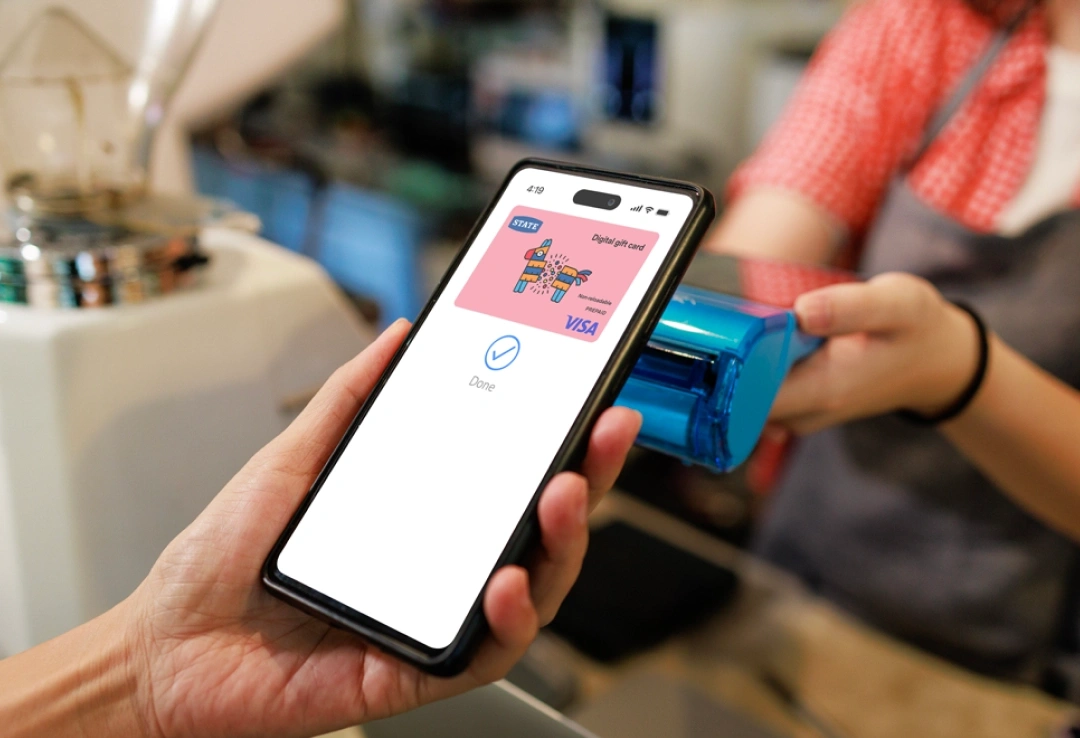

Your digital Visa gift card arrives by email, pre-loaded with money for
in-store or online spending. No physical card gets sent.

Get a $100 digital Visa card for buying new Contents and Renters policies. Read the T&Cs.
Get a $100 digital Visa card for buying a new Comprehensive car policy online. Read the T&Cs.

Buy a qualifying policy. First payment made. Once we’ve checked your eligibility, we’ll email your card to you. Check eligibility.

Policy starts. Stay covered. After 15-30 days your digital Visa gift card lands in your inbox. Woohoo.

Check your email. Click the activate button. Follow the steps. Shop online or add to your phone to tap and go in-store.
After your digital Visa card’s activated, you can shop till you drop. Here’s how.

Use your digital card like a regular debit or credit card to make online purchases almost anywhere Visa is accepted.

Find your card details by logging in to the digital Visa portal, then add them to your phone wallet to shop in-store using PayWave from your phone.


No physical card provided
A digital Visa card is a prepaid gift card issued digitally to your email address. It’s pre-loaded with money and can be used like a debit or credit card for online purchases, and for in-store purchases using PayWave from your phone wallet. No physical card is sent and it cannot be used for ATM withdrawals.
Emails about your digital Visa card
Emails about the promotion and your digital Visa card are sent by State.
One Time Passwords (OTP) emails are sent by the card issuer, Oxygen Global, with the address from do-not-reply@oxygen-global.com or noreply@m2pfintech.com with the display name noreply.
Adding more than one digital Visa card
You can add more than one digital Visa card to your phone wallet. Each card may need to be verified before it can be used.
Removing and re-adding my card
You can remove your card anytime under Card Details > Remove Card. You can add it again later if needed. Removing it from a secondary device such as a watch, won’t affect the card on your primary device.
Making partial payments
If your purchase is more than your available card balance, you can split the payment using another card or cash.
Digital Visa card expiry
Your digital Visa card is valid for three years from the month of issue and expires at the end of that month. To check your expiry month, log in to the digital Visa portal and look for the eye symbol on the card image. Move your mouse over it, or tap it on your phone, to see your card expiry date.
If you can’t use a digital card for accessibility reasons, or have limited access to devices or the internet, contact us. We’ll talk through your situation and work out a solution.
About One Time Passwords (OTP)
These are temporary codes used for a single login or verification and provide extra protection through two-factor authentication.
Your OTP will be sent to your email address from reply@oxygen-global.com or noreply@m2pfintech.com with the display name noreply.
Not receiving your verification code
Check your spam or junk folder, confirm your contact details are correct. You can also resend the code from the Wallet app or try another verification method.
‘Card Not Added. Contact your issuer’ message
This message can appear if your card is locked, expired, or has been reported lost or stolen. If you see this message, contact us.
Card not appearing in your Wallet app
Try restarting your device, check that you’re signed into the correct Wallet account, and then add the card again. If it still doesn’t appear, contact your Wallet app support or get in touch with us.
Using your card online
Make sure your card has been activated and that you’re using the correct card details. Log in to the digital Visa portal and look for the eye symbol on the card image. Move your mouse over it, or tap it on your phone, to see your card details. For best results, copy and paste the card details directly from the pop-up when paying online.
Digital card security
Your digital Visa card is issued securely by Oxygen Global NZ Limited. Digital cards in Apple Wallet and Google Wallet are protected by your device’s security features, such as Face ID or a passcode.
If your phone is lost or stolen
Contact us immediately so we can suspend or delete your digital Visa card to help keep it secure.
If you get stuck with your digital Visa card, get in touch. There are few ways to contact us.